Key takeaways
- Buffering can start at five points: the provider, the internet route, your home network, your device or the player app.
- Test speed at peak times and on a wired connection before changing anything else.
- Wired Ethernet, the 5 GHz Wi-Fi band and a device with enough free storage solve most stuttering.
- If every channel fails at the same moment on two different networks, the problem is the provider.
In this guide
Nothing ruins live TV faster than the spinning wheel. A goal you hear your neighbours cheer before you see it, a film that freezes every few minutes, a picture that keeps dropping to a blurry mess — buffering is the number one complaint about IPTV.
The good news is that most buffering has an identifiable cause, and many causes are inside your own home where you can fix them. This guide walks through the whole chain from the provider's server to your screen so you can find the weak link instead of guessing.
Where buffering comes from
A live stream passes through five links before you see it. A problem at any one of them looks the same on screen — a pause and a spinning icon — which is why random fixes so often fail.
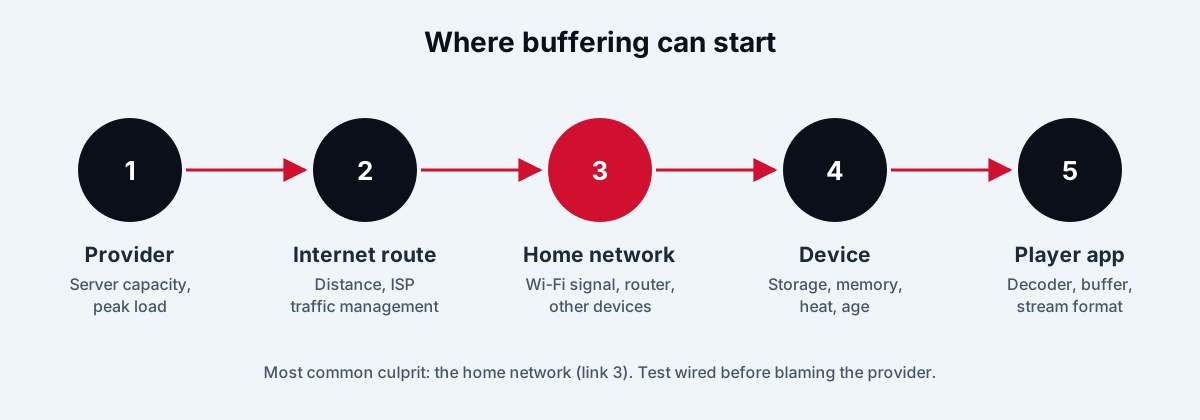
- The provider's servers — overloaded during big events, or simply under-built.
- The internet route — the path between the provider's data centre and your internet provider, including any traffic management.
- Your home network — router, Wi-Fi signal, other devices using bandwidth.
- Your streaming device — processing power, free memory and storage, overheating.
- The player app — buffer size, decoder settings and stream format.
The aim of troubleshooting is to rule links in or out one at a time.
Step 1: Measure your connection properly
A single speed test in the morning tells you very little. Do this instead:
- Test on the streaming device itself, not your phone. Many Fire TV and Android TV devices can run a speed-test app, or you can use a browser.
- Test in the evening, between about 8 and 11 p.m., when your neighbourhood is busiest.
- Look at more than download speed. Ping (latency) and jitter (variation in latency) matter for live streams. Jitter that regularly jumps above about 30 ms is a sign of an unstable link.
- Repeat on a cable. If speed jumps when you plug in an Ethernet cable, your Wi-Fi is the bottleneck.
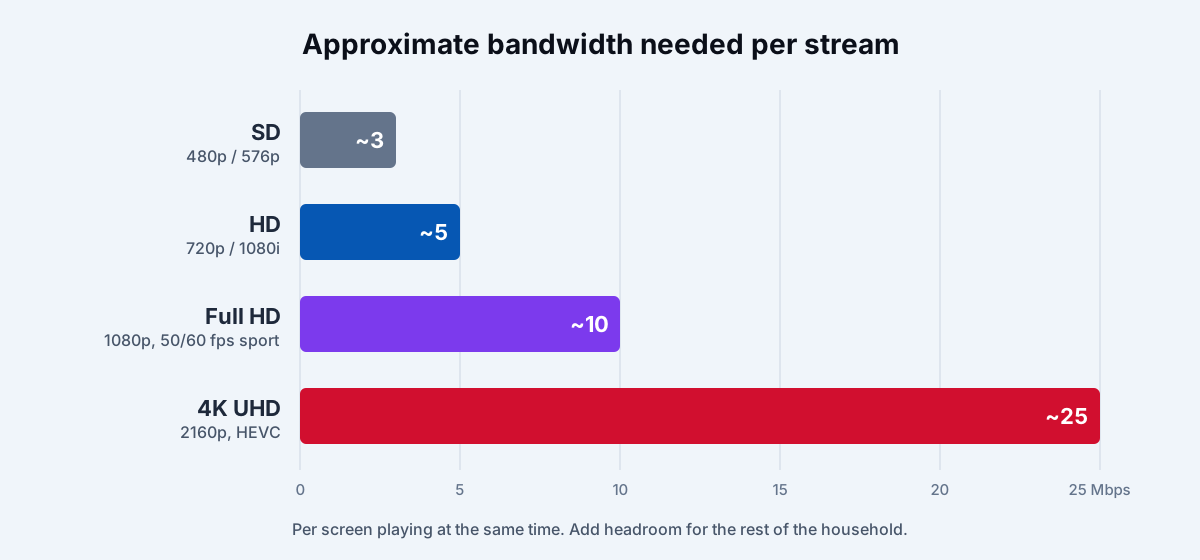
As a rough guide, allow about 5 Mbps for an HD stream, 10 Mbps for a Full HD sports stream at 50–60 frames per second, and 25 Mbps for 4K — for each screen playing at the same time, plus headroom for everything else in the house.
Step 2: Fix the home network
Home networks cause more IPTV buffering than any other link. In rough order of impact:
Use a wired connection where you can
An Ethernet cable from the router to the TV or streaming box removes Wi-Fi interference entirely. Many streaming sticks — including Amazon's Fire TV sticks — accept an inexpensive USB Ethernet adapter. If running a cable is impossible, powerline adapters that carry network data over your electrical wiring are a reasonable middle ground, although results vary from home to home.
Choose the right Wi-Fi band
The 5 GHz band (and 6 GHz on Wi-Fi 6E and Wi-Fi 7 routers) is far less crowded than 2.4 GHz and carries more data over short distances. Connect your streaming device to the 5 GHz network name if your router shows separate ones. The 2.4 GHz band travels further through walls but is shared with neighbours' routers, baby monitors and microwaves.
Move the router or add a mesh point
Wi-Fi drops sharply through walls, floors and large appliances. A router hidden in a cupboard at the far end of the house will struggle. Move it to a central, raised position, or add a mesh node near the TV.
Reduce competition on your network
Cloud backups, game downloads, system updates and 4K video calls all compete with your stream. If buffering appears at the same time every evening, check what else is running. Many routers have a "quality of service" (QoS) or device-priority setting that lets you put the TV first.
Restart, then update
Restart the router and modem once — routers that run for months can develop memory problems — and make sure the router firmware is up to date.
Step 3: Check the streaming device
Free storage and memory
Budget streaming sticks have limited storage and memory. When storage is nearly full, apps cannot cache data and performance falls off a cliff. Uninstall apps you do not use, clear the cache of your player app, and restart the device regularly.
Heat
Sticks hidden behind a TV can overheat during long sessions and slow down to protect themselves. If stutters get worse after an hour of viewing, use the HDMI extender cable that comes with many sticks to move it away from the TV's hot rear panel.
Age and model
Older or entry-level devices may struggle with high-bitrate Full HD or 4K streams, especially in the HEVC (H.265) format. If one device buffers and another on the same network does not, the device is the weak link.
Step 4: Tune the player app
Player apps have settings that make a real difference:
- Hardware decoding. Most players let you choose between hardware and software decoding. Hardware decoding is usually smoother and cooler; if you see a green screen, artefacts or no picture, try switching.
- Buffer size. Some players, such as TiviMate, let you increase the buffer. A larger buffer absorbs short network hiccups at the cost of a slightly longer start-up and a little more delay behind live.
- Stream format. Many services offer streams as MPEG-TS or HLS. If one format stutters, try the other in the app or playlist settings.
- Quality variant. If a channel is offered in several qualities, an HD version that plays smoothly beats a 4K version that buffers.
Our article on getting the best picture quality covers decoder and frame-rate settings in more detail.
Step 5: Consider your internet provider
Some internet providers manage traffic at busy times, which can affect streaming video from certain sources. Signs include buffering that appears only at peak times, only on one service, while speed tests look fine. A reputable VPN can sometimes route around congestion, but it adds a little latency and can lower throughput — test with and without it. Remember that a VPN changes the route, not the legal status of what you watch.
Step 6: Recognise a provider problem
Sometimes the fault really is upstream. Clues that point to the provider:
- Every channel freezes at the same moment.
- The problem occurs on two different networks — for example home broadband and a phone hotspot.
- It coincides with a major live event.
- Other customers report the same thing at the same time.
A reliable provider plans for peak events and has backup sources. Persistent peak-time failures are a reason to change provider, not to keep tweaking your router. Our guide to what makes a good IPTV server explains what is happening on the provider's side.
Quick troubleshooting table
| Symptom | Most likely cause | First fix to try |
|---|---|---|
| Buffering only in the evening | Network congestion (home or ISP) | Wired connection; test at peak; QoS |
| One device buffers, another doesn't | Device performance or storage | Clear cache, free storage, restart |
| One channel fails, others play | That channel's source | Try later, or a different quality variant |
| All channels fail at once | Provider outage | Check on a second network, contact support |
| Picture fine, audio drifts out of sync | Player decoder or audio passthrough | Toggle hardware decoding or audio passthrough |
| Stutters get worse over time | Overheating or memory | HDMI extender, restart device |
When to contact support
If you have worked through the steps and still have problems, contact your provider with the details that let them help quickly: device model, app and version, connection type (Wi-Fi or wired), your speed-test results, the channels affected and the exact times. "It buffers" can't be fixed; "channels 1, 4 and 9 freeze every two minutes on a wired Fire TV Stick 4K Max since 8 p.m." can.
The bottom line
Stable IPTV is a chain, and the chain is only as strong as its weakest link. Measure first, fix the home network, look after the device, tune the player — and only then judge the provider. Do that and you will either solve the problem yourself or know for certain that it is time to switch.
If you are still choosing a service, read how to test an IPTV provider during a trial, or contact us with your device and connection details.
stable iptvbufferingwi-fitroubleshootingstreaming quality