Key takeaways
- Only a small share of live TV is produced in native 4K; many '4K' channels are upscaled HD.
- Every link must support 4K: the TV, the streaming device, the HDMI port and cable, the app and your connection.
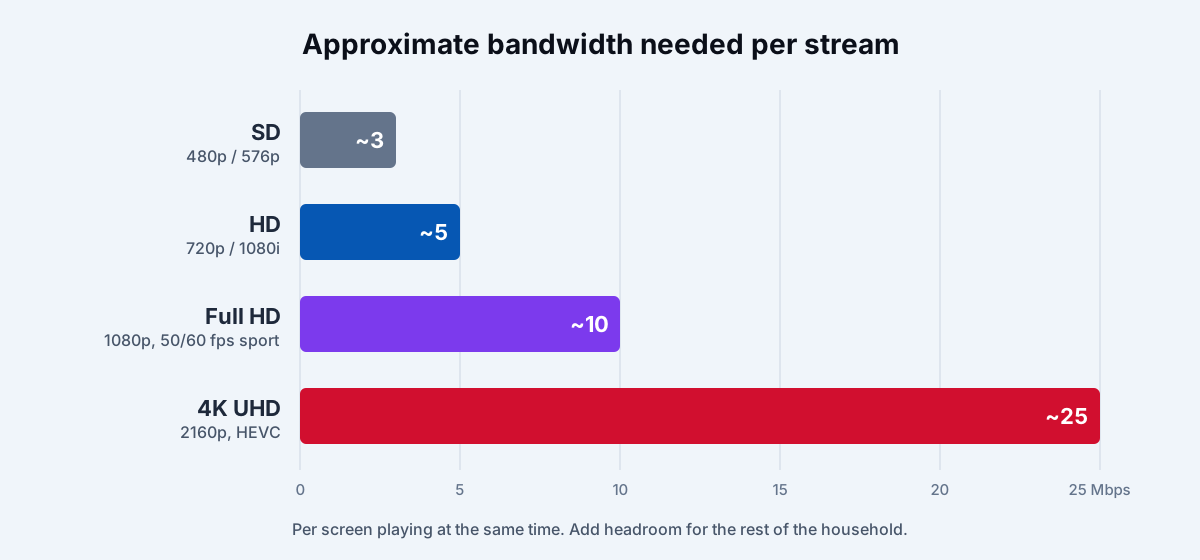
- Plan for about 25 Mbps of stable bandwidth per 4K stream.
- For sport, smooth 50/60 frames per second matters more than resolution.
"4K" appears on almost every IPTV advert, but genuine 4K live TV is still the exception rather than the rule. Getting it to work also depends on far more than the subscription: your television, streaming device, cables, app settings and internet connection all have to cooperate.
This guide explains what 4K really means for live TV, what you need at every step, and how to check whether you are actually watching in 4K.
What "4K" means — and what it doesn't
4K (also called Ultra HD or UHD) is a resolution of 3840 × 2160 pixels — four times as many as Full HD (1920 × 1080). On a large TV viewed from a normal distance, the extra detail is visible, especially on wide shots of stadiums and nature footage.
But resolution is only one part of picture quality. Three other things often matter more:
- Bitrate — how much data per second the stream uses. A heavily compressed 4K stream can look worse than a generous Full HD one.
- Frame rate — 50 or 60 frames per second gives smooth motion in sport. A 4K stream at 25 or 30 fps can look juddery on fast action.
- HDR (high dynamic range) — brighter highlights and richer colour. Many viewers notice HDR more than the jump from Full HD to 4K.
How much live TV is really in 4K?
Native 4K production is expensive, so broadcasters reserve it for the events where it makes the most difference. In practice, live 4K tends to mean:
- selected major sports events and matches, often on dedicated 4K channels or feeds;
- some nature, travel and demonstration channels;
- occasional special broadcasts.
Everyday news, talk shows and most entertainment channels are still produced in HD. When an IPTV lineup lists dozens of "4K" versions of ordinary channels, many are HD broadcasts scaled up to 4K resolution. Upscaling does not add real detail; it just uses more bandwidth. Your TV already upscales HD very well on its own.
On-demand content is different. Streaming platforms have large 4K libraries of films and series, so if 4K matters to you, your on-demand catalogue is where you will notice it most.
What you need for 4K, link by link
1. A 4K television — ideally with HDR
Any 4K TV will display a 4K signal. For HDR, check which formats your TV supports: HDR10 is universal, HLG is used by some broadcasters for live HDR, and Dolby Vision and HDR10+ are common on streaming platforms.
2. A 4K-capable streaming device
The device must decode 4K video, usually in HEVC (H.265) and increasingly in AV1. Examples include Amazon's Fire TV Stick 4K and 4K Max and the Fire TV Cube, Google TV Streamer, Apple TV 4K and the Nvidia Shield TV. Basic "HD" sticks cannot output 4K at all. Built-in smart TV apps can also play 4K, but their IPTV app choice is often more limited — see our guide to IPTV on smart TVs.
3. The right HDMI port and cable
Plug the device into an HDMI input that supports 4K at 60 Hz with HDCP 2.2 or later. On some TVs only one or two inputs qualify — check the labels or the manual. Use a "Premium High Speed" or "Ultra High Speed" certified HDMI cable; older cables can cause flickering or a black screen at 4K. If you route through a soundbar or AV receiver, it must pass 4K and HDR too.
4. A player app that supports 4K and HEVC
Your IPTV player must support the codec the stream uses and must be set to use the device's hardware decoder. Most modern players do, but older or very simple apps may fall back to software decoding, which stutters at 4K.
5. Enough stable bandwidth
Plan for about 25 Mbps per 4K stream, sustained — not just as a peak on a speed test. If two people watch 4K at once, double it, and leave headroom for the rest of the household. Wi-Fi is the most common reason 4K stutters; a wired connection or a strong 5 GHz signal makes a big difference. Our stable IPTV checklist explains how to test.
Codecs in plain English
A codec is the method used to compress video. For 4K it matters because uncompressed 4K is enormous.
| Codec | Typical use | What it means for you |
|---|---|---|
| H.264 (AVC) | Most HD live TV | Plays on almost everything; inefficient for 4K. |
| H.265 (HEVC) | Most 4K live and on-demand | About half the bandwidth of H.264 for similar quality; needs a newer device. |
| AV1 | Growing use by large streaming platforms | Efficient and royalty-free; only newer devices decode it in hardware. |
If a 4K channel shows a black screen or plays audio only, the device or app probably cannot decode its codec.
Frame rate: why sport fans should care
For football, ice hockey, motor racing and other fast sports, a stream at 50 frames per second (Europe) or 60 (North America) looks dramatically smoother than one at 25 or 30. When choosing between a 4K/25 fps feed and a Full HD/50 fps feed of the same match, many viewers prefer the latter. Turn on your device's "match frame rate" option where available so the TV switches to the stream's native rate instead of converting it.
How to check you are really getting 4K
- Player statistics. Many apps can show stream information — resolution, codec and bitrate — from a menu or long-press. Look for 3840×2160.
- The TV's info banner. Press the info button on the TV remote; many models show the incoming resolution and HDR format.
- Device display settings. Make sure the streaming device's output resolution is set to 4K (or "auto"), not 1080p.
If the stream says 3840×2160 but the bitrate is very low, it may be an upscaled or heavily compressed feed.
Common 4K problems and fixes
| Problem | Likely cause | Fix |
|---|---|---|
| Black screen on 4K channels only | Codec not supported, or HDCP issue | Enable hardware decoding; use a 4K/HDCP 2.2 HDMI port |
| Flickering or "no signal" | HDMI cable or port limitations | Use a certified high-speed cable and the right input |
| Constant buffering | Not enough sustained bandwidth | Wired connection; close other streams; choose HD |
| Washed-out colours | HDR mismatch | Check TV HDR settings; enable dynamic range matching |
| Juddery motion | Frame-rate conversion | Turn on "match frame rate" |
Is 4K worth it for IPTV?
If you have a large 4K HDR TV, a capable device and a fast, stable connection, 4K is worth having for the events and films that are genuinely produced in it. For everyday channels, a clean Full HD stream at the right frame rate is what makes the biggest difference — and it is far less demanding on your network.
Before paying extra for "4K", ask the provider which channels are native 4K, which codec they use and what bitrate to expect. If you want help checking your setup, our setup guide covers each major device and our picture quality guide explains the settings that matter.
4k iptvuhdhdrhevclive tv